

How to Submit a Proposal
RIPE Meetings use Pretalx, an open source conference management tool, to manage the submissions. Here’s a step-by-step guide to submitting your proposal.
Step 2
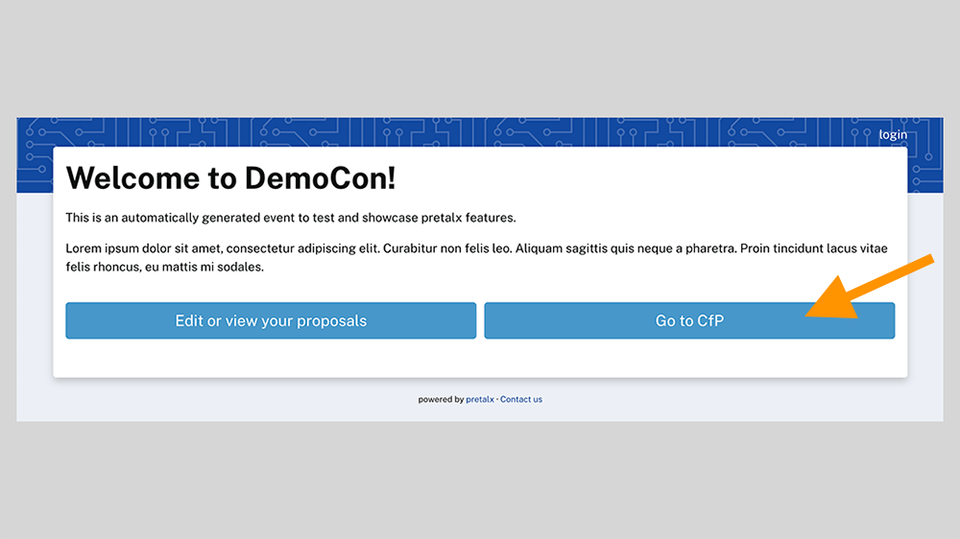
Click on Go to CfP

Step 3
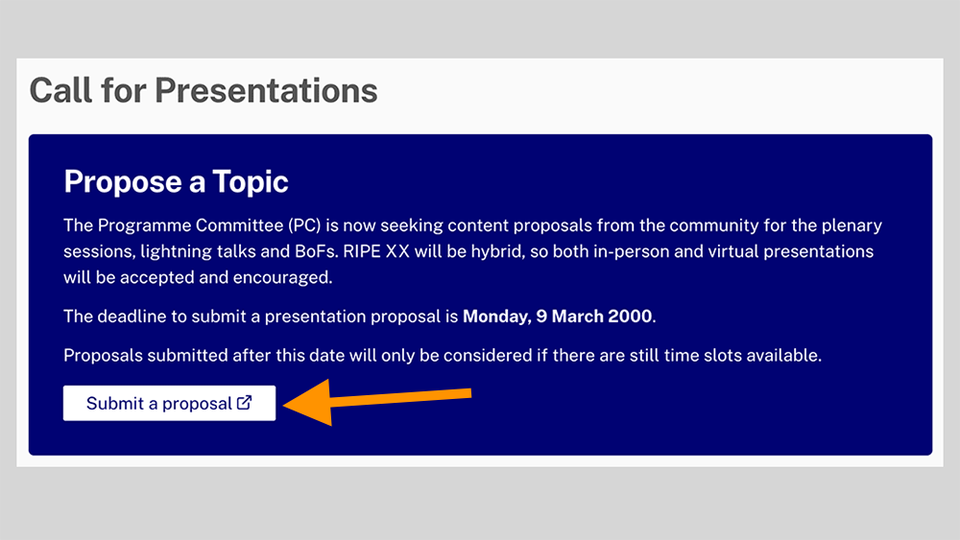
Click on Submit a proposal
Step 4
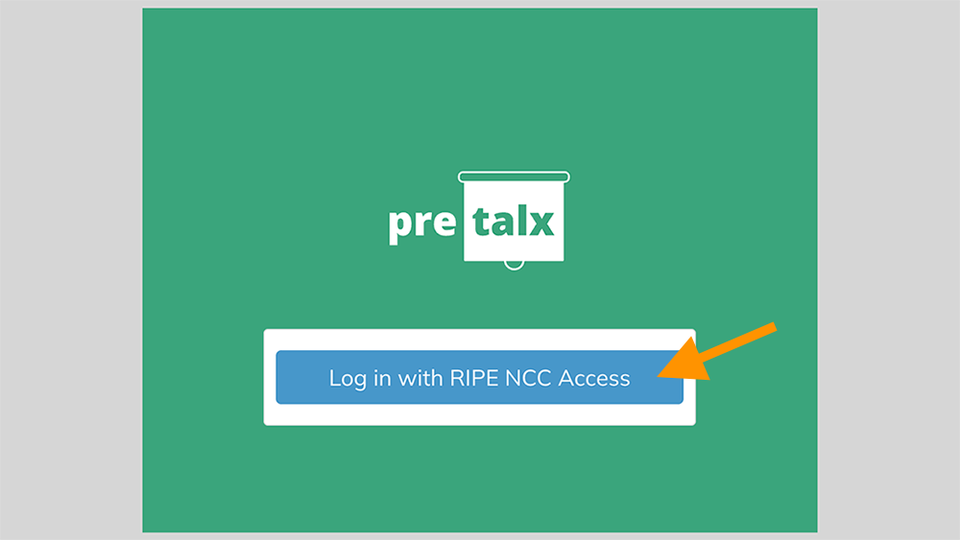
You will then need to log in using your RIPE NCC Access account. If you do not have an account, you can make one for free.
Step 5 (Optional)
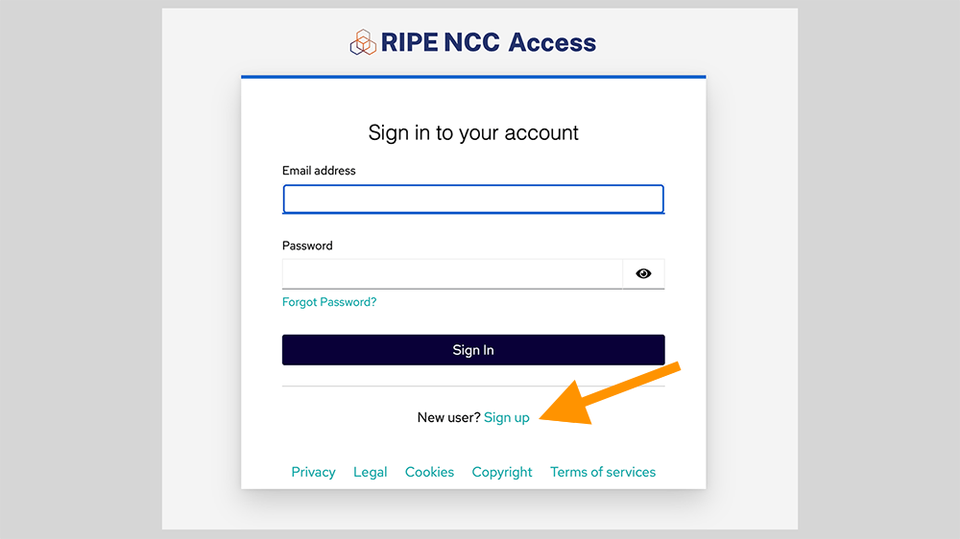
You can skip this step if you already have a RIPE NCC Access account. If you have a RIPE NCC Access account, log in. You will need two-factor authentication.
If you do not have an account, you can make one for free.
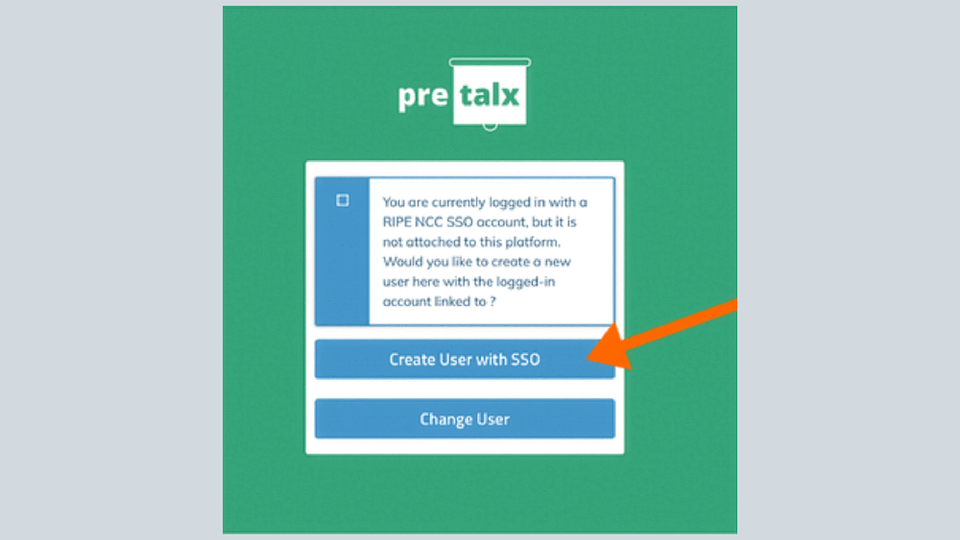
Step 6
Once you’ve signed in, click on Create User with SSO
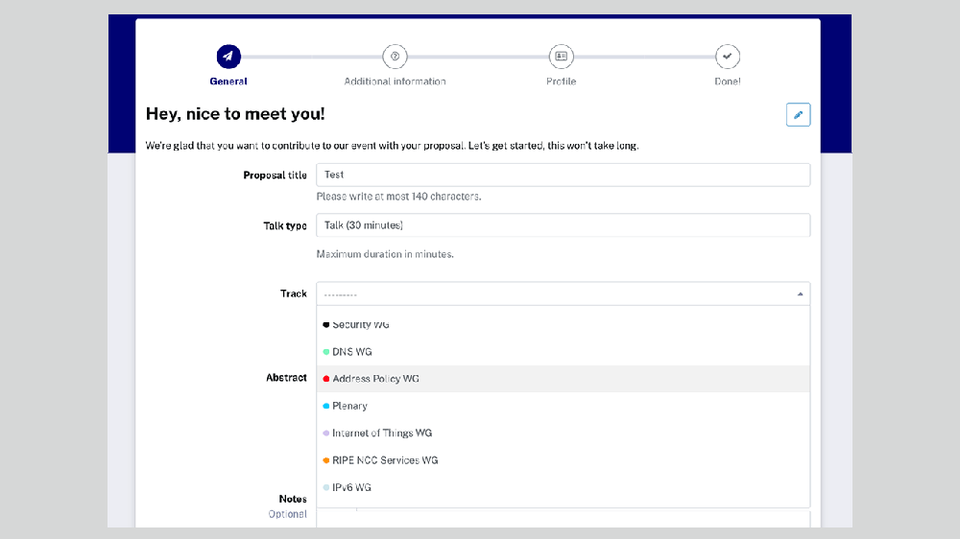
Step 7
Add details about your proposed talk.
Important: Select Plenary if you would like to submit a proposal for a main plenary session.
To submit a talk for a working group, use the dropdown menu to select the Working Group (Track) for which you would like to submit your proposal.
The plenary proposals and working groups have different deadlines. You can still select a working group when submitting your proposal after the plenary proposal submission has closed.

Step 8
You can use the Additional Speaker field to add the email addresses of any co-presenters.
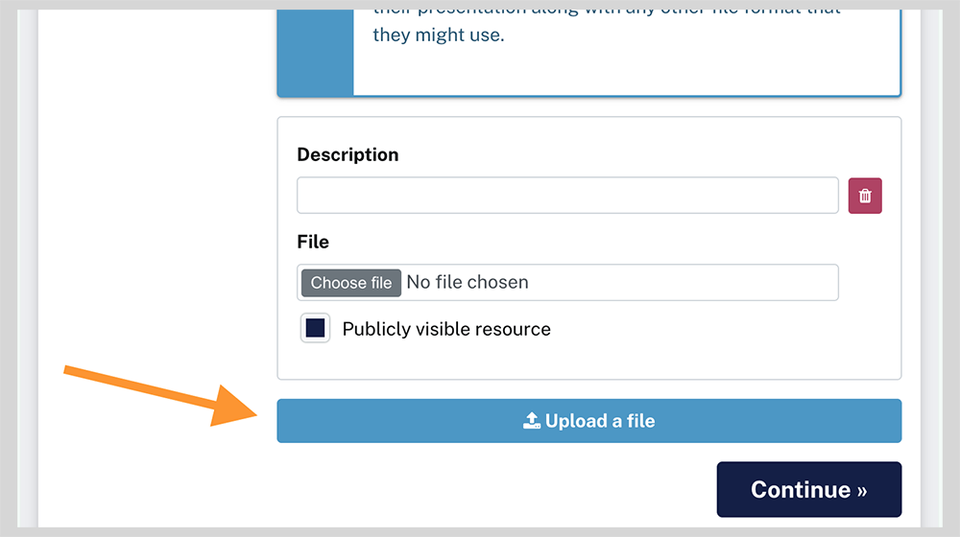
Step 9
Please read the Resources notice carefully.
Click the Upload a file button to upload your slides.

Step 10
Publicly visible resource
This box can be unchecked for draft materials or private personal notes.
However, before delivering your presentation, this box MUST be checked, especially for your final PDF slides, to ensure attendees can see and/or download your final slides from the meeting programme.
Note: Slides will only be publicly available on the meeting programme on the meeting's first morning.
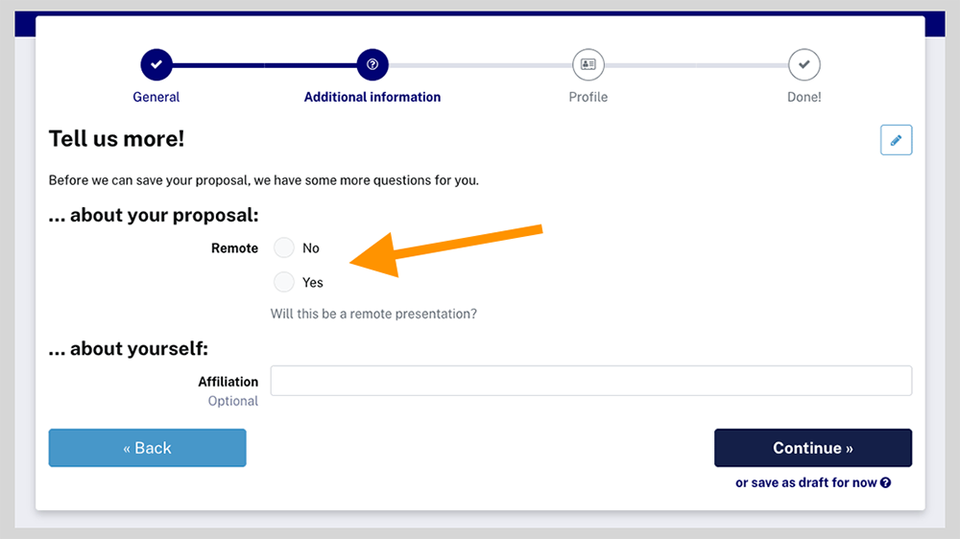
Step 11
Let us know whether you are presenting remotely or in person. Click on Continue to add your profile details.
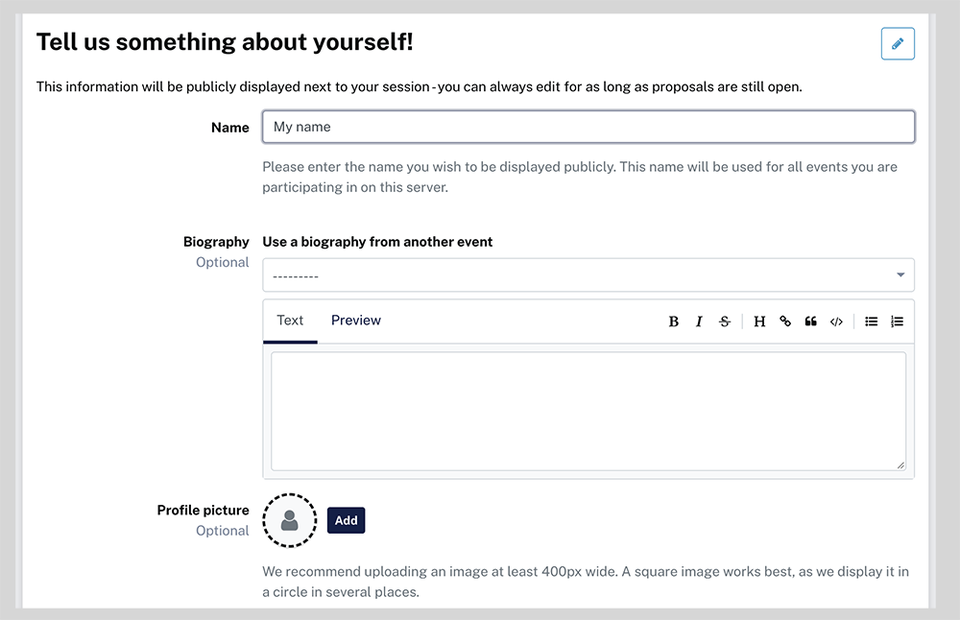
Step 12
Complete the Profile information section. You can add a photograph and a short bio that will be published if your proposal is accepted.
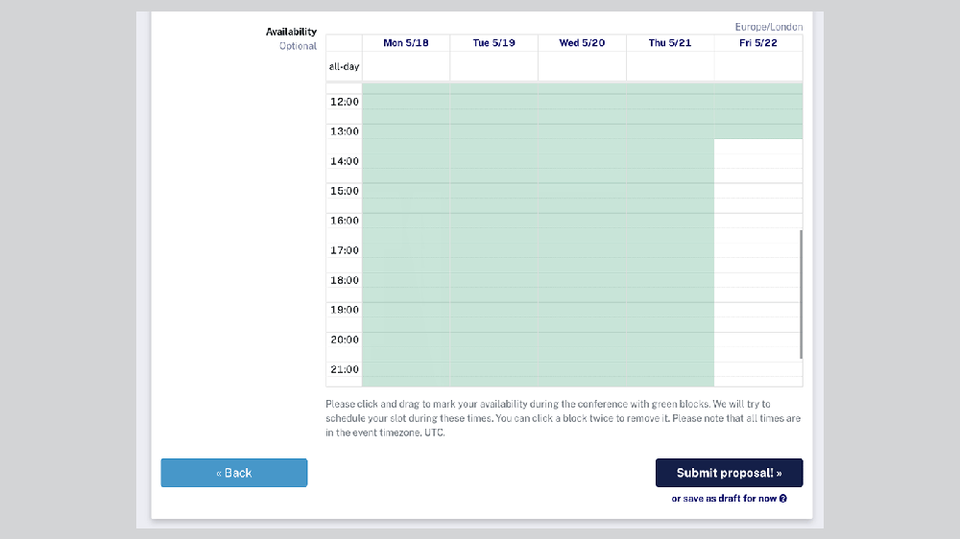
Step 13
You can also mark your preferred time slot as a speaker. Please note that if your proposal is accepted for a plenary session, you may be given a speaking slot for Friday morning.
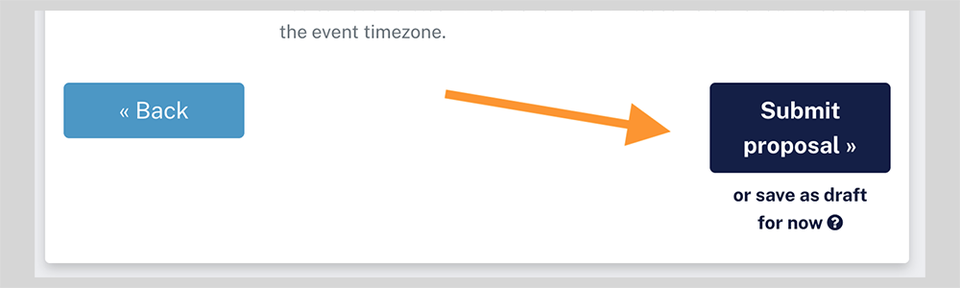
Step 14
Submit your proposal! Or Save it as draft for now.